Google Business Profile Video Verification Failed? 7 Proven Fixes (2026)
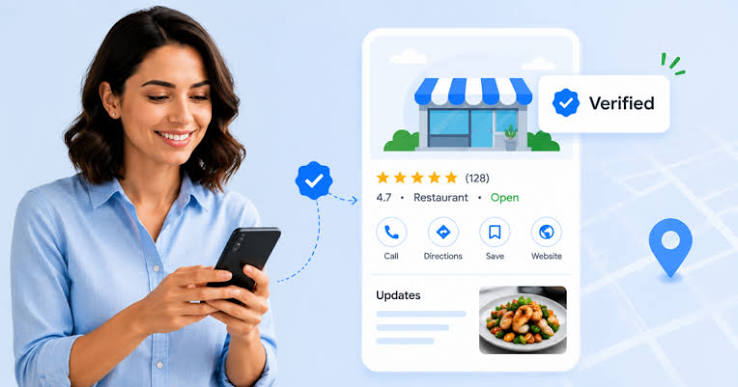
Quick answer: Google Business Profile video verification usually fails because the video lacks clear street signs, shows temporary paper signage, exceeds 2 minutes, or fails to prove business management. To pass on your next try, record a continuous 60-to-90-second video starting outside with street signs, moving to permanent signage, and unlocking your workspace or POS system.
Why Does Google Business Profile Video Verification Fail?
Google uses video verification to stop fake listings and confirm that your business actually exists where you claim. Automated systems and human reviewers check every submission against three strict pillars:
- Current Location: Your video must match the exact map pin and street address listed on your profile.
- Business Existence: You must show permanent signage, physical equipment, or official business branding.
- Proof of Management: You must prove you are authorized to represent the business by unlocking doors, operating a cash register, or accessing staff-only areas.
If even one of these three elements is unclear or cut off, Google rejects the video without giving a detailed explanation.
7 Proven Fixes When GBP Video Verification Fails (2026)
Follow these seven steps before recording your next submission to avoid common rejection triggers.
1. Record Outside Street Signs and Neighboring Landmarks First
Never start your video inside your office or shop. Begin outdoors across the street or on the sidewalk so the camera clearly captures official road signs, building numbers, and neighboring businesses.
Showing recognizable nearby storefronts helps Google confirm your exact GPS location within seconds. Slowly pan toward your entrance before walking inside.
2. Show Permanent Business Signage (Not Printed Paper)
Google automatically rejects videos that show your business name printed on standard A4 paper taped to a wall or door. Your signage must be permanently mounted, painted, or professionally displayed on your storefront, building directory, or reception wall.
If you operate a Service Area Business from home without outdoor signage, show branded company vehicles, printed invoices, business registration certificates, and professional tools instead.
3. Prove Management Access (Unlock Doors, POS, or Branded Vehicle)
Simply walking around a public lobby does not prove you own or manage the business. During your continuous recording, use your keys or keycard to unlock the front door or a private office.
Once inside, step behind the counter and interact with your Point of Sale (POS) system, business computer, or staff-only equipment. For mobile service providers, unlock your branded work van and show your tools inside.
4. Keep the Video Continuous and Under 90 Seconds
Google requires one continuous, unedited recording with zero cuts, pauses, or transitions. Although the technical upload limit is longer, videos over 2 minutes often fail during upload or time out during review.
Plan your walking route beforehand so you can capture the street, signage, entrance, and management proof smoothly in 60 to 90 seconds.
5. Hide Sensitive Personal or Customer Data
Before hitting record, clear your desk and counter of any sensitive information. Reviewers will reject videos that accidentally expose customer faces, bank details, credit cards, national IDs, or private medical files.
Turn computer monitors away from confidential client spreadsheets and keep only your business dashboard or website visible.
6. Fix Address vs. Service Area Business (SAB) Mismatches
Many rejections happen because a home-based or mobile business leaves its residential street address visible on the profile. If customers do not visit your physical address during stated hours, you must hide your address and set up your listing as a Service Area Business.
Make sure your profile category, business name, and operating hours match what appears in your video. For a complete setup walkthrough, review our guide on Local SEO for Small Businesses: Beginner’s Guide 2026.
7. Switch Devices, Clear App Cache, or Contact Google Support
Sometimes a valid video fails due to poor lighting, shaky camera movement, or an app glitch. Record during daylight hours, hold your phone steadily, and avoid moving the camera too fast between rooms.
If your profile remains stuck after multiple clean attempts, check other common visibility issues in our post on Why Is My Business Not Showing on Google Maps? 9 Fixes or submit a support ticket through the Google Business Profile Help Center to request a live video call.
Storefront vs. Service Area Business Video Checklist
| Verification Requirement | Physical Storefront / Office | Service Area Business (Mobile / Home-Based) |
| Location Proof | Street signs, building number, and neighboring shops | Street signs outside your home base or service area |
| Branding Proof | Permanent outdoor sign or building directory plaque | Branded vehicle, uniforms, tools, and official tax/registration docs |
| Management Proof | Unlocking the front door and operating the POS/register | Unlocking your branded van or accessing business software/invoices |
| Address Setting | Street address visible on Google Business Profile | Street address hidden; service cities/regions selected |
What to Do If the Video Upload Button Stops Working
If your video gets stuck on “Uploading” or returns an immediate error message, follow these quick troubleshooting steps:
- Switch to Mobile Data or Stronger Wi-Fi: Large video files often fail on unstable connections.
- Use a Different Browser or Device: Open your Google Business Profile dashboard in Google Chrome Incognito mode or scan the QR code to record from a newer smartphone.
- Check Storage Space: Ensure your phone has at least 2 GB of free storage so the browser does not crash while compressing the video.
Frequently Asked Questions (FAQs)
How long does Google Business Profile video verification take?
Google typically reviews video verification submissions within 3 to 5 business days. In some cases, automated checks approve clear videos within a few hours.
How many times can I try Google video verification?
There is no strict public limit on video attempts, but repeated failed uploads can temporarily lock the option. If you fail three times, review your profile details and contact Google Support.
Why does my GBP video keep failing to upload?
Upload failures usually happen when the video exceeds 2 minutes, your internet connection drops, or your mobile browser runs out of memory. Record a shorter 60-second video over strong Wi-Fi.
Can I request a live video call instead of recording a video?
Yes, if standard video verification fails repeatedly or the option disappears from your dashboard, you can contact Google Business Profile Support and request a live video call with a specialist.