Phone Battery Life: How Long It Lasts and How to Extend It

Most modern smartphones provide roughly 8 to more than 25 hours of active use per charge, depending on the model and what you do with it. The battery itself typically remains useful for about two to three years before its maximum capacity noticeably declines. In other words,“phone battery life” can describe daily runtime or the battery’ s overall lifespan.
Screen brightness, demanding apps, weak cellular signals, background activity, charging habits, and heat all affect performance. The good news is that a few practical settings and charging habits can help your phone last longer each day and stay healthier for more years.
How Long Does a Phone Battery Last?
A phone battery usually lasts a full day on one charge, although heavy gaming, video streaming, navigation, and high screen brightness can reduce that to several hours. With lighter use, some high-capacity phones can last into a second day.
The battery’ s overall lifespan is different. Most lithium-ion smartphone batteries retain useful capacity for around two to three years, or approximately 300 to 500 full charge cycles. Some newer battery designs and careful usage may last longer, while heat and intensive daily use can speed up degradation.
As a battery ages, it stores less energy. You may notice that the phone drops from 30% to 10% quickly, shuts down unexpectedly, or needs charging several times per day. Replacing the battery can often restore much of the phone’ s original runtime and may cost less than buying a new device.
The Main Factors That Affect Phone Battery Life
Your phone’ s runtime depends on its hardware, software, settings, network conditions, and daily habits. The same battery may last all day for one person but only a few hours for someone who streams video, uses GPS, and plays games regularly.
Screen brightness, refresh rate, and screen timeout
The display is one of the largest power consumers, especially when brightness is set near maximum. A high refresh rate, such as 120Hz, makes scrolling smoother but can use more energy than a standard 60Hz setting.
Use adaptive brightness or lower the brightness manually when possible. A shorter screen timeout also prevents the display from staying on unnecessarily. If you use an OLED or AMOLED phone, dark mode may reduce consumption because dark pixels require less power.
Gaming, streaming, navigation, and camera use
Graphics-heavy games place sustained demands on the processor, graphics hardware, display, and network connection. Video streaming keeps the screen and wireless connection active, while navigation uses GPS, mobile data, and often a bright display at the same time.
Camera use can also drain power during long sessions, particularly when recording high-resolution video. These activities are normal sources of battery use, not necessarily signs of a faulty phone. Downloading content over Wi-Fi for offline viewing can reduce network-related drain during travel.
Background apps, syncing, and notifications
Apps can use energy while you are not actively looking at them. Social media, email, cloud storage, fitness tracking, and messaging apps may sync frequently, check location, refresh feeds, or deliver notifications.
Occasional background activity is expected, but a poorly optimized or rarely used app can consume an unusual amount of power. Review the battery-usage screen in your phone’ s settings to see which apps are responsible before restricting important services.
Mobile signal, Wi-Fi, Bluetooth, GPS, and hotspot use
A phone uses more energy when it has to search for a reliable cellular signal. This can happen in elevators, rural areas, basements, and large buildings. Mobile hotspots are also demanding because the phone acts as both a modem and a wireless access point.
Wi-Fi is generally more efficient than mobile data when the signal is strong. Bluetooth usually uses little power for accessories, but location services, GPS navigation, and prolonged hotspot use can have a much larger effect.
Charging habits and battery temperature
Lithium-ion batteries age faster when exposed to high temperatures or repeated deep discharges. Leaving a phone in direct sunlight, using it intensively while charging, or keeping it inside a hot car can raise battery temperature.
Charging from 20% to 80% may reduce stress when it is convenient, but it is not a strict requirement. Modern phones are designed for normal charging between 0% and 100%. Avoiding frequent extremes and excessive heat matters more than following a perfect percentage every day.
Why Is My Phone Battery Dying So Fast?
A sudden drop in runtime may come from normal heavy use, a software issue, poor reception, or an aging battery. Start by checking battery usage and recent changes instead of assuming the battery immediately needs replacement.
Power-hungry apps and background activity
Open your phone’ s Battery or Battery Usage settings and look for apps using an unusually high percentage. A game may consume substantial power while open, but a social or shopping app using energy all day in the background deserves closer attention.
Update, uninstall, or restrict background activity for apps you rarely use. You can also reduce email sync frequency and disable unnecessary notifications. Avoid restricting essential services, such as emergency, messaging, or authentication apps, without understanding the effect.
Weak cellular signal and constant network searching
Poor reception can cause rapid battery drain because the phone repeatedly searches for a stronger connection. If your battery lasts much longer on Wi-Fi or in another location, network conditions may be the cause.
When you are in a dead zone and do not need calls or mobile data, turn on Airplane Mode. This stops constant network searching. You can then enable Wi-Fi separately if you still need internet access.
Recent software updates or app problems
Battery use can temporarily increase after an operating system update while the phone indexes files, updates apps, and completes background tasks. It should generally settle after a short period.
If the problem continues, install available system and app updates, restart the phone, and review battery usage again. A recently installed app may be incompatible or stuck in a background process. If basic troubleshooting fails, contact the manufacturer before considering a factory reset.
Aging battery capacity
An older battery cannot hold as much energy as it did when new. Common signs include noticeably shorter runtime, unexpected shutdowns, slower performance during low charge, and a percentage that falls unusually quickly.
Check battery health if your phone provides the feature. On some Android devices, diagnostics are available through the manufacturer’ s support app; some smartphones show battery health in Settings. If maximum capacity is substantially reduced, professional battery replacement may extend the phone’ s useful life.
Warning signs of a damaged or unsafe battery
Stop using and charging a phone that is swollen, cracked, leaking, unusually hot, or emitting an odor. A raised screen or back panel can indicate a damaged battery and should not be pressed back into place.
Do not puncture, freeze, or place a swollen battery in household trash. Turn the device off if it is safe to do so, keep it away from flammable materials, and contact the manufacturer, a qualified repair provider, or a local electronics recycling program.
How to Make Your Phone Battery Last Longer Each Day
The fastest improvements usually come from reducing screen power, limiting unnecessary background work, and managing connectivity. Start with the changes that have the least effect on how you use your phone.
Lower brightness and shorten screen timeout
Set brightness to a comfortable level rather than leaving it at maximum. Adaptive brightness can adjust the display automatically as lighting changes. A screen timeout of around 30 seconds to one minute prevents the display from staying active after you put the phone down.
When traveling, reducing brightness before the battery becomes critically low can make a meaningful difference. Lowering the refresh rate can help too, although you may prefer to keep a high refresh rate for smoother scrolling.
Enable adaptive brightness, dark mode, and battery saver
Adaptive battery features learn which apps you use most and limit unnecessary activity. Battery Saver or Low Power Mode can reduce background refresh, visual effects, and network activity when you need extra runtime.
Dark mode is particularly helpful on OLED and AMOLED displays. It may provide less benefit on LCD screens, but it can still make the interface more comfortable at night. Battery Saver may delay notifications or reduce performance, so use it when the trade-off is worthwhile.
Restrict background activity for high-drain apps
Review the battery page regularly and restrict background use for apps that consume energy without providing useful alerts. Remove unused apps and reduce automatic syncing for services you do not need throughout the day.
Keep essential messaging, security, navigation, and work apps unrestricted if timely updates matter. The goal is not to stop all background activity, but to prevent unnecessary processes from running continuously.
Turn off unused connectivity and location features
Disable NFC, Bluetooth, or location access when you are not using them, particularly if your phone is constantly searching for a device or location. You can usually control these options from Quick Settings or Control Center.
Location access can be set to “while using the app” instead of always enabled. This preserves navigation and location-based features without allowing every app to track your position continuously.
Reduce vibration, widgets, and live wallpapers
Vibration feedback uses the phone’ s motor and can add up if you receive frequent alerts or type extensively. Turn off keyboard vibration and unnecessary notification vibrations if you want to conserve power.
Frequently updating widgets and live wallpapers may also require regular processing. Use static wallpapers and keep only the widgets that provide genuine value, such as weather or calendar information.
Use Wi-Fi when available and Airplane Mode in dead zones
Use a reliable Wi-Fi network instead of mobile data when practical, especially for video calls, large downloads, and streaming. In locations with little or no service, Airplane Mode prevents the phone from repeatedly searching for a connection.
Healthy Charging Habits for Longer Battery Life
You do not need a perfect charging routine to protect a modern smartphone. Focus on reducing heat, avoiding repeated deep discharges, and using charging features designed for your device.
Use adaptive charging or a charge limit when available
Adaptive charging may pause or slow charging before 100% and finish close to when you usually unplug the phone. Some devices also offer an 80% charge limit, which can reduce the time the battery spends at a high voltage.
These features are most useful when the phone remains plugged in for long periods. Disable a charge limit temporarily when you need maximum runtime for travel or a long day.
Avoid frequent deep discharges and unnecessary heat
Do not deliberately run the battery to 0% as a routine. Charging whenever convenient is fine, and partial charges do not harm modern lithium-ion batteries. The 20% to 80% range is a helpful target, not a rule that should create inconvenience.
Heat is more damaging than ordinary fast charging. Avoid intensive gaming, recording video, or using a hotspot while the phone is charging if the device becomes hot.
Understand overnight charging and fast charging
Overnight charging is generally safe because modern phones stop normal charging at full capacity. However, keeping a battery at 100% for many hours, especially in a warm environment, may contribute to long-term wear.
Fast charging is convenient and usually safe with a compatible phone and charger. It may produce more heat than slower charging, so use it when you need speed rather than making maximum charging power a daily necessity.
Use a compatible charger and cable
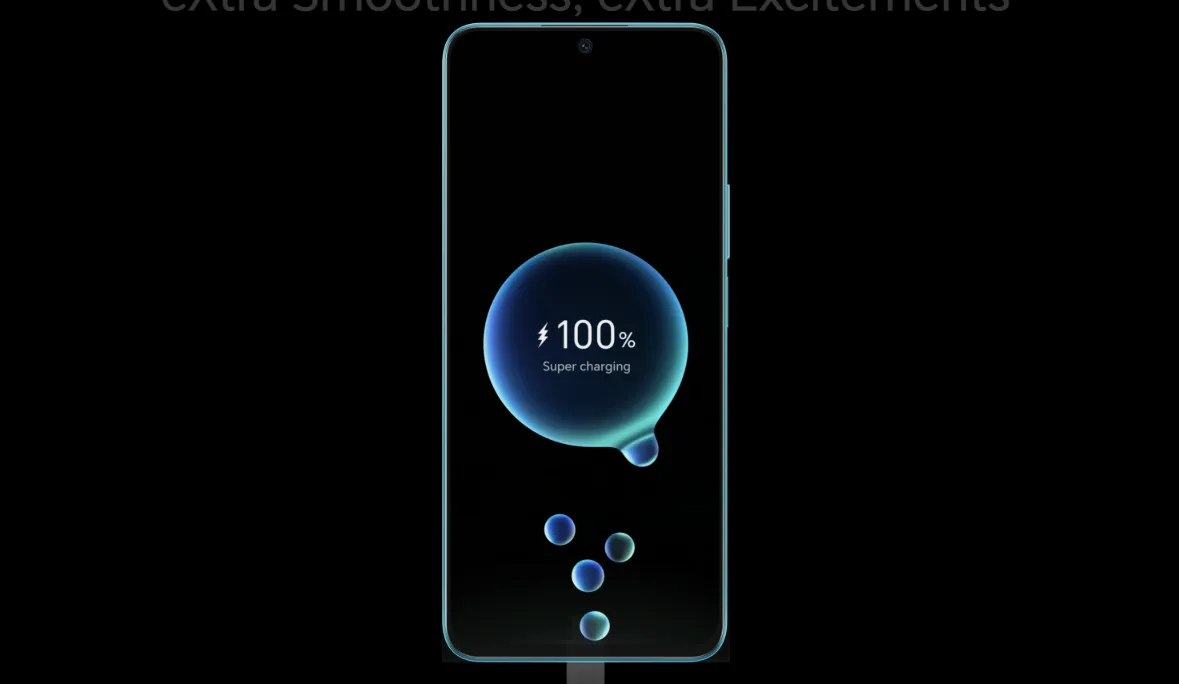
Use the charger supplied with your phone or a reputable, certified replacement that meets the manufacturer’ s specifications. Cheap or damaged accessories may charge unreliably, overheat, or fail to provide the expected safety protections. The HONOR X8a supports up to 22.5 W of wired charging with a compatible charger and cable.
Replace cables with frayed insulation, bent connectors, or loose plugs. If the phone or charger becomes unusually hot, disconnect it and investigate the accessory before charging again.
Keep the phone cool while charging
Charge on a hard, open surface rather than under a pillow, blanket, or heavy case that traps heat. Keep the device away from direct sunlight and hot vehicles. If a case makes the phone noticeably warm, remove it while charging.
Freezing temperatures can temporarily reduce performance, while high temperatures can cause lasting battery damage. Let a very cold or hot phone return to a moderate indoor temperature before charging.
Conclusion: Simple Habits Can Improve Phone Battery Life
Phone battery life has two meanings: how long the phone runs between charges and how many years its battery remains healthy. Daily runtime may range from several hours to more than a day, while most lithium-ion batteries remain useful for roughly two to three years.
You can improve both results by lowering brightness, shortening screen timeout, controlling background apps, using Wi-Fi when available, and limiting unnecessary location or hotspot activity. Charge when convenient, avoid repeated deep discharges, use compatible accessories, and keep the phone cool. These simple habits can reduce battery anxiety and help your device remain dependable for longer.